Finance Reporting, Closing, And Document Controls
Nova finance updates improve how accountants review statements, protect closed periods, and keep invoices, bills, and payments aligned with approvals.
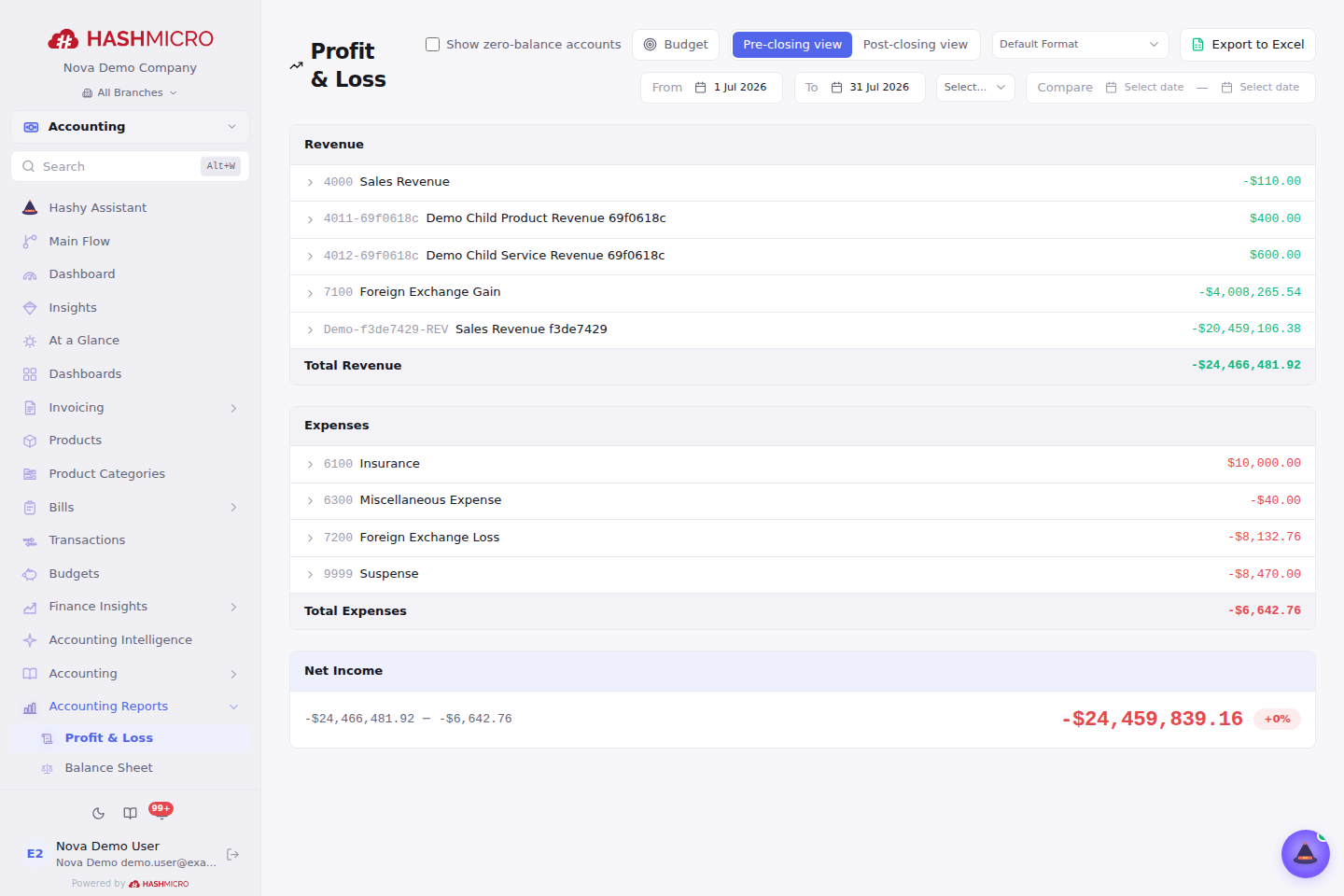
Formal Profit And Loss
The Formal Profit and Loss report is the main accounting Profit and Loss report. It is based on posted accounting entries and is used for report screens, exports, financial statements, and comparisons.
The Profit and Loss report has a Report view filter:
- Pre-closing view excludes closing entries inside the selected period, so normal income and expense activity still appears after the period is closed.
- Post-closing view includes closing entries inside the selected period, so users can confirm income and expense accounts were closed to zero.
Use this report for:
- Monthly performance review.
- Year-to-date performance review.
- Comparing periods.
- Preparing financial statements.
Generated reports and exports label the active report view so reviewers know whether they are reading pre-closing or post-closing balances.
For a summarized management view, group the account-based Profit and Loss by parent account. Nova combines each immediate child account into its parent while preserving the same revenue, expense, and net-income totals. For example, Online Sales and Retail Sales can appear as one Revenue Group row while the account view continues to show the individual child balances.
Trial Balance Views
Trial Balance defaults to Pre-closing Trial Balance.
When the selected period contains closing entries, Nova can also show Post-closing Trial Balance. Use:
- Pre-closing Trial Balance to review account balances before income and expense accounts are closed.
- Post-closing Trial Balance to confirm closing entries have moved balances into retained earnings or the selected closing accounts.
The Balance Sheet continues to include closing entries so retained earnings stay aligned with the closed period.
Branch And Reporting Currency
Financial reports can be run for one branch or for a selected group of branches. When the selected branches use different base currencies, choose a reporting currency before generating the report. Nova converts each branch to that reporting currency using the available exchange rates before combining the results.
If a required exchange rate is missing, add the rate first and rerun the report. Nova does not add balances from different base currencies without a reporting currency.
Filtering Financial Statements By Cost Center
Use the Cost Center filter on Profit and Loss, Balance Sheet, Trial Balance, and Cash Flow when finance needs to review one operational area separately.
Before starting, confirm that posted transactions or journal entries have the correct Cost Center. A report can only attribute amounts that were linked when the source document or journal entry was created.
Typical workflow:
- Open the required financial report.
- Set the report dates, statement format, branch, and reporting currency as needed.
- Choose one or more Cost Centers. Each selected Cost Center appears as a removable chip. Leave the filter empty to include every Cost Center the user is allowed to review.
- When two or more Cost Centers are selected, review the Cost Center comparison table. Each account has one amount column per selected Cost Center, so finance can compare operational areas without opening separate reports. Period comparisons use the same selected Cost Centers.
- Clear the Cost Center and rerun the report when company-wide totals are required.
Example: selecting Retail Operations and Wholesale Operations shows a combined Profit and Loss plus side-by-side columns for both Cost Centers. Remove one chip to return to a single Cost Center, or remove all chips to restore the combined result for all permitted Cost Centers.
If a user is restricted to specific Cost Centers, Nova automatically limits the report to those Cost Centers even when the filter is empty. If expected amounts are missing, check the source document's Cost Center, posting status, date, branch, and the user's Cost Center access before treating the result as zero.
Point of Sale closing posts one journal entry for the whole session. When a session contains orders from multiple Cost Centers, selecting any matching Cost Center includes the full session journal entry. Exact mixed-Cost-Center allocation will require finer posting granularity.
Account budgets are branch-wide, so Budget comparison is unavailable while one or more Cost Centers are selected. Clear all Cost Center chips to review budget versus actual amounts.
Report Errors And Recovery
If Nova cannot load an accounting report, it shows the reason returned by the server instead of displaying an empty report. Read the message before retrying:
- For a missing exchange rate, add the named currency rate for the requested period, then choose Retry or regenerate the report.
- For a branch access message, select only branches you are allowed to review or ask an administrator to update your branch access.
- For a validation message, correct the named date, account, currency, or other field and run the report again.
- For a temporary connection or server problem, choose Retry after the connection is restored.
An error message means the report was not generated. Do not treat an error state as a valid zero-balance or no-activity report.
Budgets
Use Accounting > Budgets to set monthly spending budgets by cost center and compare them with actual expenses linked to those cost centers.
The page opens on the latest month that has a budget so current budget review loads quickly and does not depend on older exchange-rate periods. Change the From and To months when you need to review a historical range. If a selected range needs an exchange rate that has not been entered, Nova shows the missing rate message instead of treating that month as zero.
Typical budget setup flow:
- Open Accounting > Budgets.
- Select the month range you want to review.
- Choose Create Budget.
- Choose the Cost Center, From month, To month, and monthly amount.
- Save the budget and review the budget, actual, and variance cells in the comparison grid.
Users with budget edit access can click a budget cell to update one month. View-only users can review the comparison grid but cannot create or edit budget amounts.
Financial Statement Formats
Use financial statement formats to decide how statement rows are grouped and displayed.
Formats can help companies maintain:
- Management statement layouts.
- Local statutory layouts.
- OJK-style financial statement reporting where required.
- Different row mappings for Profit and Loss, Balance Sheet, or Trial Balance.
Before generating a statement, confirm the selected format matches the report purpose and company policy.
Typical setup flow:
- Open Accounting > Financial Statement Formats.
- Choose the Profit and Loss, Balance Sheet, or Trial Balance tab.
- Create a new format or duplicate a reviewed format.
- Add statement sections and row labels.
- Map rows by account type, account category, account code, or specific account.
- Add subtotal rows where needed.
- Review unmapped-account warnings.
- Set the default format only after finance review.
Use Reset Defaults only when the company wants to return system-managed formats to their default layout. Archive old formats instead of deleting them when historical reports may still refer to them.
OJK Reports
OJK report options provide statement layouts intended for regulated reporting needs. Use them only when the company follows those reporting requirements and the account mappings have been reviewed by finance.
Debit And Credit Notes
Debit and credit notes help correct or adjust invoices and bills without editing the original paid or posted document incorrectly.
Typical uses:
- Price correction.
- Returned goods.
- Tax correction.
- Vendor or customer adjustment.
Review the linked document, amount, tax, and reason before confirming a note.
Credit notes are normally created from customer invoices. Debit notes are normally created from vendor bills. Open the original invoice or bill and choose Create Credit Note or Create Debit Note from the document actions. Nova opens a linked draft note and copies important details such as currency, taxes, withholding tax, Cost Center, and document references so the adjustment stays traceable.
When the company uses Cost Centers, select one Cost Center on invoices, bills, credit notes, and debit notes before saving or confirming the document. Nova carries that single Cost Center into the generated Journal Entry header and lines so Journal Entries and financial reports stay aligned with the source. For inventory purchasing, set the Cost Center on the Purchase Order before validating the receipt. The stock receipt Journal Entry uses the Stock Transfer Cost Center when one is set; otherwise it inherits the Purchase Order Cost Center. The same rule applies to other operational postings:
- A Sales Order delivery inherits the Sales Order Cost Center unless the Stock Transfer has its own Cost Center.
- Manufacturing completion, unbuild, and manufacturing-linked stock movements inherit the Manufacturing Order Cost Center.
- Asset acquisition, opening, depreciation, maintenance, and disposal entries inherit the Asset Cost Center.
- A POS session close uses the Cost Centers from its paid POS Orders.
- Invoice and bill payment entries retain the Cost Center from the related invoice or bill.
- Landed Cost inherits from its linked Stock Transfer, and Manufacturing Cost Actualization collects the Cost Centers of its selected Manufacturing Orders.
- A reversal keeps the original Journal Entry Cost Center on both the header and its reversed lines.
Documents with several Cost Centers remain linked to each selected center, but Nova does not duplicate or split journal amounts automatically; use separate source documents per Cost Center or an explicit manual Journal Entry allocation when a multi-center breakdown is required.
On the Profit & Loss report, select up to eight Cost Centers and click Compare to apply them. Changing the selection does not refresh the report until Compare is clicked, so several centers can be prepared together. The selector stays compact by showing the first selected center plus the remaining count (for example, Logistics, +3); reopening it marks every active center. The comparison table then shows each selected Cost Center as its own amount column for every revenue and expense account.
When the original invoice or bill is still unpaid, use Reconcile Credit Note or Reconcile Debit Note from the payment panel to reduce its outstanding balance. Select the posted note, review the note total, already reconciled amount, and remaining amount, then enter the amount to reconcile. The amount can be partial. If the reconciliation clears the remaining balance, Nova marks the invoice or bill as paid. The payment panel keeps these note reconciliations in the same settlement history as payments, so users can see why the outstanding balance changed even when no cash or bank payment was recorded.
If the original invoice or bill was already paid before the credit or debit note was created, the note represents money that must be returned to the customer or recovered from the vendor. Open the credit or debit note and use Record Payment from its payment panel. Nova records an actual cash or bank payment for that case instead of applying the note back to an already-paid outstanding balance.
Aging Reports
Use Accounting > Aging Reports to review open receivables and payables by due date. The receivable view groups customer invoices, and the payable view groups vendor bills.
Select Expand All to show every invoice or bill beneath the customers or vendors in the active view. The same button then changes to Collapse All; select it again to return to the summarized customer or vendor balances. You can still expand or collapse one row at a time.
Reconciled credit notes reduce the outstanding balance of the selected invoice. Reconciled debit notes reduce the outstanding balance of the selected bill. Nova shows the remaining balance on the original invoice or bill instead of aging the applied note amount as a separate receivable or payable.
Statement Of Accounts
Use Accounting > Statement of Accounts to review customer receivable activity or vendor payable activity for a selected date range. The screen opens with a server-paginated list of all active customers for receivables, or all active vendors for payables. Selecting a specific customer or vendor drills into the statement detail.
The summary list shows:
- Current, overdue, total outstanding, and ending balance by customer or vendor.
- Last activity date and whether the partner has an email address available.
- An optional Overdue only filter for collection or payment follow-up.
- Row-level Send actions and a top-level Send All action.
The detailed statement shows:
- Opening balance before the selected period, shown as a labeled first row before period activity.
- Debits and credits during the selected period.
- Running balance for each invoice, bill, credit note, debit note, or payment.
- Ending balance for the selected customer or vendor.
Choose Receivable for customer statements and Payable for vendor statements. Leave the customer or vendor selector empty to review all partners, or select one partner to review and export its detailed statement to Excel.
Use the Email tab to prepare the SOA email subject and body, choose the SOA PDF template, choose the email template, and decide whether the PDF should be attached. Send selected sends only the currently selected partner. Send All sends a bounded batch from the current filters and defaults to overdue-only recipients so finance can follow up without emailing every account by mistake. Partners without email addresses are skipped and counted in the result.
Users with report edit access can save the SOA template, email template, subject, body, PDF attachment preference, overdue-only preference, and batch limit as the company defaults for future SOA sends.
If company cost-center restrictions apply, both the summary and detailed statement follow the user's allowed cost centers so the totals match what the user is permitted to review.
Transaction Journal Entry Previews
Use Accounting > Transactions to review imported or manually entered bank transactions before creating their journal entries. Open the row action and choose Preview Draft Journal Entry to see the debit and credit lines Nova will create. The preview does not post anything, so finance can check account mapping, amount, currency, and balance before creating the actual journal entry.
Cash Receipts And Cash Payments
Use Accounting > Cash Receipts when money is received and should be posted directly to the ledger. Select one bank or cash account, add one or more voucher lines, review the total, and save the voucher. Nova posts the bank or cash account on the debit side and posts the voucher-line accounts on the credit side.
Use Accounting > Cash Payments when money is paid out directly. Select one bank or cash account, add the voucher-line accounts for the expenses, assets, liabilities, or other accounts involved, review the total, and save the voucher. Nova posts the voucher-line accounts on the debit side and posts the selected bank or cash account on the credit side.
Cash receipt and cash payment vouchers create normal journal entries, so they appear in Journal Entries, General Ledger, Trial Balance, Profit and Loss, Balance Sheet, and Cash Flow reports. They should be used for direct cash or bank activity that does not need an invoice or bill first.
Download a Journal Entry printout
Open a saved Journal Entry and select Download PDF when an audit file, approval attachment, or printable accounting record is needed. The PDF includes the journal number, posting date, status, source details, branch and company identity, cost centers, memo, account codes and names, debit and credit lines, currency, and balanced totals. Review that total debit equals total credit before sharing the printout. Users need Reports view access to download it.
Document Import Review
From an Import window, choose Download Template before preparing new rows. Nova downloads the template as an XLSX workbook by default so it can be filled directly in Excel or another spreadsheet application. Use the format dropdown beside the button to choose CSV when a plain-text template is required. Both formats contain the same current columns and example rows for the selected menu.
When importing invoices, bills, quotations, sales orders, purchase orders, or RFQs from a CSV or Excel file, Nova may show a Review step after upload. This step highlights suggested corrections before the final import, such as matching a company name to an existing customer or vendor, matching an item to an existing product, normalizing number formats, or using the product price already saved in Nova. Hashy also reviews likely typing mistakes against the customer's existing Nova data and only suggests matches from records already available in that account. If an uploaded item does not match any saved product, Nova marks it for review so the user can correct the product value or accept the file value as a free-text line item.
Choose Accept to apply a suggestion to the import rows. Choose Cancel to keep the value from the uploaded file. If the suggested value is close but still wrong, type the correct value in the correction box and choose Apply correction. Nova updates that row with the typed value; for product corrections, Nova does not keep a previously suggested product link when the user overrides the product value manually.
The review step also highlights missing import data before import. Required values, such as the document number, must be filled before continuing. Recommended document details, such as customer or vendor, product, and price, are shown for review so the user can fill them from the same step when the uploaded file is incomplete. After reviewing suggestions and missing values, continue to Map Columns and complete the import as usual.
Invoice And Bill Safeguards
Recent controls help prevent accounting mismatches:
- Invoices cannot be manually marked Paid without an actual payment flow.
- Payment progress follows the recorded payment totals.
- Invoice due date must not be earlier than the issue date.
- Invoice and bill tax breakdowns are visible for review.
- Invoice lists show issue date for easier aging review.
- Deleting invoices or bills requires typed confirmation.
- Bills require key aging fields before they can be relied on for aging review.
- Posted bill journal entries respect the bill date and fiscal period rules.
Payments, Write-Offs, And Foreign Exchange
Use the payment panel to review outstanding amount, paid amount, and remaining balance. These totals come from recorded payment activity, not from manually changing the document status.
Payment flows can include:
- Partial payment.
- Full payment.
- Payment cancellation.
- Withholding tax adjustments.
- Credit adjustments.
- Write-off lines for approved differences.
- Realized foreign exchange difference indicators when payment currency and document currency require it.
Do not register payment on a document that is still pending approval. Complete approval first, then register payment.
Foreign currency invoice and bill posting
When an invoice or bill uses a currency different from the branch currency, Nova keeps both the document currency and the branch accounting value. Review the exchange rate before confirming or posting so the journal entry reflects the company's expected base-currency amount. Nova fills the document exchange rate from the available rate for the invoice or bill issue date. In Register Payment, Nova fills the payment exchange rate from the selected payment date. If the document and branch use different currencies, Nova rejects a rate of 1 because that would treat them as equal. For a future payment date, enter the expected rate manually. Product prices and totals are shown in the selected document currency, with the branch-currency equivalent shown for review.
Payments may later create realized foreign exchange differences when the payment rate differs from the receivable or payable carrying value. If the open invoice or bill was revalued before payment, Nova clears the receivable or payable at the latest revalued carrying value and posts the difference against the payment-date bank value to foreign exchange gain or loss. Review the foreign exchange gain and loss accounts in Accounting Defaults before relying on these postings.
Month-end currency revaluation
At period end, finance can post a manual currency revaluation for a branch from Accounting > Currency Revaluation when foreign-currency invoice, bill, or bank balances remain open. Select each foreign currency from active Currency master data, enter the period-end exchange rate, and select whether to include receivables, payables, bank balances, or all three. Nova compares open receivable and payable balances, plus foreign-currency bank native balances, with their current accounting carrying value. If a currency was revalued before, the next revaluation uses the latest revalued carrying value as the basis rather than the original posting rate. The generated journal entry posts the difference to the configured foreign exchange gain or loss account.
Foreign-currency cash receipt vouchers increase the bank balance at the entered exchange rate. Foreign-currency cash payment vouchers reduce the bank balance at the bank account's average carrying rate and post the difference against the entered payment-date rate to realized foreign exchange gain or loss.
Confirm the official period-end rate before posting. If a posted revaluation needs correction, reverse the generated journal entry and post the period again with the corrected rate.
Prepayments And Unearned Revenue
Use prepayment schedules when a billed cost or invoiced service should be recognized over future months instead of all at once. The recommended workflow starts from a posted Vendor Bill or Customer Invoice so tax stays in the Tax Report and document numbering continues to use the normal Bill or Invoice sequence. Open Accounting > Prepayments to select the source document, preview the allocation, and post each recognition period.
Common examples:
- Annual insurance paid in advance.
- Software or service subscriptions paid ahead.
- Customer advances for services that will be delivered over future periods.
For prepaid expenses, create and post a Vendor Bill whose relevant product line uses a prepaid-asset account. Nova records the bill, including input tax, before the schedule recognizes expense each month. For unearned revenue, create and post a Customer Invoice whose relevant product line uses an unearned-revenue liability account. Nova records the invoice and output tax with the normal Invoice number before the schedule recognizes revenue each month.
Create a schedule from a Bill or Invoice
- Create the dedicated product or service and set its line account to the prepaid asset or unearned revenue liability that should hold the balance.
- Create the Vendor Bill or Customer Invoice with that product, tax, dates, and counterparty, then post the document.
- Open Accounting > Prepayments and choose Vendor Bill or Customer Invoice as the source.
- Select the posted document and one or more eligible lines. Nova shows the source amount, tax, amount already allocated, and remaining amount.
- Set the recognition account, first recognition month, and number of periods.
- Review the allocation preview, then choose Save as Draft or Activate Schedule.
The source document already owns the initial accounting and tax. Activating a document-sourced schedule never creates another initial journal entry. Monthly recognition only moves the selected untaxed balance from prepaid asset to expense, or from unearned revenue liability to revenue.
Before activating, review:
- Source type and source document number.
- Selected source lines and their prepaid or unearned-revenue account.
- Start month and number of periods.
- Untaxed amortizable amount, source tax, already allocated amount, and remaining amount.
- Recognition account and the monthly schedule amount.
- The source Bill or Invoice journal entry and Tax Report result.
After reviewing the preview, choose the action that matches the accounting state:
- Save as Draft saves the schedule without posting a journal entry. The schedule stays in Draft status, and its recognition rows cannot be posted.
- Activate Schedule links the posted Bill or Invoice journal and changes a document-sourced schedule to Active without duplicating the initial journal.
- Activate and Post Initial Journal Entry remains available for Manual schedules such as approved opening balances or historical adjustments.
To activate a saved draft later, select it and use the action shown for its source. Verify that the status is Active, the source link is correct, and the source document remains posted before posting recognition rows.
If a Bill or Invoice is not available for selection, check that it is posted, belongs to the active branch, contains an eligible prepaid-asset or unearned-revenue line, and has not already been allocated. Users also need view access to the source document and edit access to Prepayments.
Post each recognition row only for the period being recognized. Do not post a recognition row twice; use the journal entry history to review what has already been recognized.
Recurring Invoices
Use Sales Invoices > Recurring Invoices to create invoices that repeat on a schedule.
Important fields:
- Customer.
- Invoice lines and taxes.
- Frequency.
- Next run date and last run date.
- Due offset days.
- Enabled or disabled state.
Use Run Now when finance needs to generate the next invoice immediately. Review the generated invoice history to confirm the recurring setup is producing the expected documents.
Approvals And Payments
When a document is pending approval, Nova blocks payment or conversion actions that should wait for approval. This includes payment actions and quotation or purchase document conversions where approval is required.
Users should approve or reject the document first, then continue with payment, conversion, or posting.
Closed Fiscal Periods
Nova prevents journal entries from being changed in a closed fiscal period. If a correction is needed after close, use the company's approved reopening, adjustment, or reversal process rather than editing closed-period entries.
Fiscal period actions can include:
- Close period.
- Reopen period.
- Close year.
- Generate closing entries.
Before generating closing entries, confirm the retained earnings or closing account setup is complete and the finance team has finished review. Nova blocks closing entries for fiscal years that have not reached their end date yet. Reopening a period allows corrections according to access rights, but it should be controlled because reports and prior closing entries may need review again.
Chart Of Accounts
Chart of Accounts now separates broad account categories from detailed account types. Finance users maintain detailed types in Accounting > Account Types, where each account type belongs to one account category such as Asset, Liability, Equity, Revenue, Expense, or View.
Typical setup flow:
- Create or review account types such as Bank and Cash Equivalent, Receivable, Inventories, Current Asset, Fixed Asset, Non-current Asset, Payable, Operating Revenue, or Operating Expense.
- When creating a Chart of Accounts record, select the detailed account type.
- Nova fills the account category from the selected account type.
- Use detailed account types when configuring financial statement formats, and use account categories only for broader fallback mappings.
The account category still controls Profit and Loss placement, Balance Sheet placement, and closing-entry behavior. The detailed account type gives finance teams a finer grouping layer for statement format setup.
Access Rights
Common access:
- Reports: view financial statements and reporting screens.
- Journal Entries: create or edit accounting entries.
- Fiscal Periods: close, reopen, or manage period controls.
- Invoices/Bills/Payments: manage document payment workflows.
- Chart of Accounts: manage account setup.
Hashy follows the same access rights. If a user cannot view reports or edit accounting documents, Hashy cannot do it for them.
Hashy can request pre-closing or post-closing Profit and Loss and Trial Balance when the user has Reports access. Use pre-closing Profit and Loss to review closed-period activity without the closing entries. Custom or OJK statement layouts should be selected from the reporting screen unless the exact Hashy tool option is available to the user.
Before You Start
- Confirm the correct company, branch, and access for Finance Reporting And Closing.
- Check Date range, Filters, and Summary cards before creating, changing, approving, or exporting Finance Reporting And Closing.
- Open only the supporting record or attachment directly referenced by Finance Reporting And Closing.
Screen Details To Check
- Date range controls the time period or deadline used by Finance Reporting And Closing.
- Filters controls which Finance Reporting And Closing results are visible and should remain unchanged while those results are reviewed or shared.
- Summary cards controls which Finance Reporting And Closing results are visible and should remain unchanged while those results are reviewed or shared.
- Trend view controls which Finance Reporting And Closing results are visible and should remain unchanged while those results are reviewed or shared.
- Drill-down records controls which Finance Reporting And Closing results are visible and should remain unchanged while those results are reviewed or shared.
Typical Workflow
- Open Finance Reporting And Closing and set the filters or search needed to find the correct record.
- Run Finance Reporting And Closing with the required filters, then open this report's drill-down for any total that needs review.
- Review Date range, Filters, Summary cards, Trend view, Drill-down records before using an action.
- Save or complete the intended Finance Reporting And Closing action, then reopen the record or list to confirm the result.
Details & Screenshot
The Finance Reporting And Closing screen keeps its filters, totals, drill-down details, and export actions together. Keep the selected scope visible when reviewing or sharing this report.
Examples
Run Finance Reporting And Closing With The Correct Scope
Use this flow to review Finance Reporting And Closing filters, totals, drill-down details, and exports.
- Open Finance Reporting And Closing and select the period, company scope, branch, currency, and report view offered by this report.
- Review Date range, Filters, Summary cards, Trend view, Drill-down records on Finance Reporting And Closing before using this page's action.
- Use Finance Reporting And Closing's drill-down to inspect totals that need explanation.
- Export Finance Reporting And Closing only after its visible filters and totals are correct.
Expected result: Finance Reporting And Closing matches its visible filters and each reviewed total can be traced through this report's own drill-down.
Investigate A Difference In Finance Reporting And Closing
Use this flow when Finance Reporting And Closing does not show the expected result.
- Keep the current Finance Reporting And Closing filters visible and identify the total or row that differs.
- Open Finance Reporting And Closing's drill-down and compare the included records with the selected period and scope.
- Correct the directly linked source record or the report filter responsible for the difference.
- Rerun Finance Reporting And Closing and confirm the corrected total before sharing it.
Expected result: Finance Reporting And Closing matches its visible filters and each reviewed total can be traced through this report's own drill-down.
Field Explanations
- Date range controls the time period or deadline used by Finance Reporting And Closing.
- Filters controls which Finance Reporting And Closing results are visible and should remain unchanged while those results are reviewed or shared.
- Summary cards controls which Finance Reporting And Closing results are visible and should remain unchanged while those results are reviewed or shared.
- Trend view controls which Finance Reporting And Closing results are visible and should remain unchanged while those results are reviewed or shared.
- Drill-down records controls which Finance Reporting And Closing results are visible and should remain unchanged while those results are reviewed or shared.
- Status on Finance Reporting And Closing shows whether this page's work is still a draft, ready for review, completed, or blocked.
- Related records on Finance Reporting And Closing provide the supporting business trail for the action taken on this page.
- Activity history on Finance Reporting And Closing shows who changed the record and what the next reviewer should know.
Detailed Walkthrough
- Open Finance Reporting And Closing and confirm the correct company, branch, and page scope.
- Set Finance Reporting And Closing's filters, run the report, and review Date range, Filters, Summary cards, Trend view, Drill-down records.
- Read warnings and status before using the main Finance Reporting And Closing action.
- Rerun Finance Reporting And Closing and confirm the visible filters, totals, and drill-down match before export.
- Keep attachments, notes, or activity history on Finance Reporting And Closing complete for the next reviewer.
Common Problems
- Finance Reporting And Closing totals look wrong: confirm this report's period, scope, filters, currency, and view.
- A drill-down is empty: keep Finance Reporting And Closing's filters visible and check whether the selected total has source records.
- An export differs: rerun Finance Reporting And Closing and export without changing the visible filters.
- The report is unavailable: confirm access to Finance Reporting And Closing and the selected business scope.
Review And Closeout Checks
- Confirm Date range, Filters, Summary cards, Trend view, Drill-down records are correct for Finance Reporting And Closing.
- Confirm the Finance Reporting And Closing status and available next action match the intended result.
- Confirm supporting attachments, notes, and related records for Finance Reporting And Closing are complete.
- Confirm the next user can understand the Finance Reporting And Closing result without relying on another page's instructions.
Access And Hashy
Hashy can help find or summarize Finance Reporting And Closing when enabled and permitted. Check its answer against the fields and records visible on this page.
Directly Related Guides
Finance Reporting And Closing is completed on this page and does not require a separate manual page.